

Back

Reopen Ticket by Saasly
Automatically reopen a ticket at a future date and time you choose.
PAID
Visit to InstallVerified App
Installation Guide
Follow these steps to configure Reopen Ticket in Zendesk.
1. Install the App
- Install Reopen Ticket from the Zendesk Marketplace.
- Open the app from the Zendesk nav bar.
You'll be prompted to connect your Zendesk account before scheduling any reopens.
2. Connect OAuth
- Open Manage Connections from the app.
- Click Connect Zendesk.
- Sign in and grant the requested permissions.
- Wait until the connection status shows Connected.
OAuth authentication is required before any reopen can be scheduled.
3. Schedule a Reopen
- Open any Zendesk ticket.
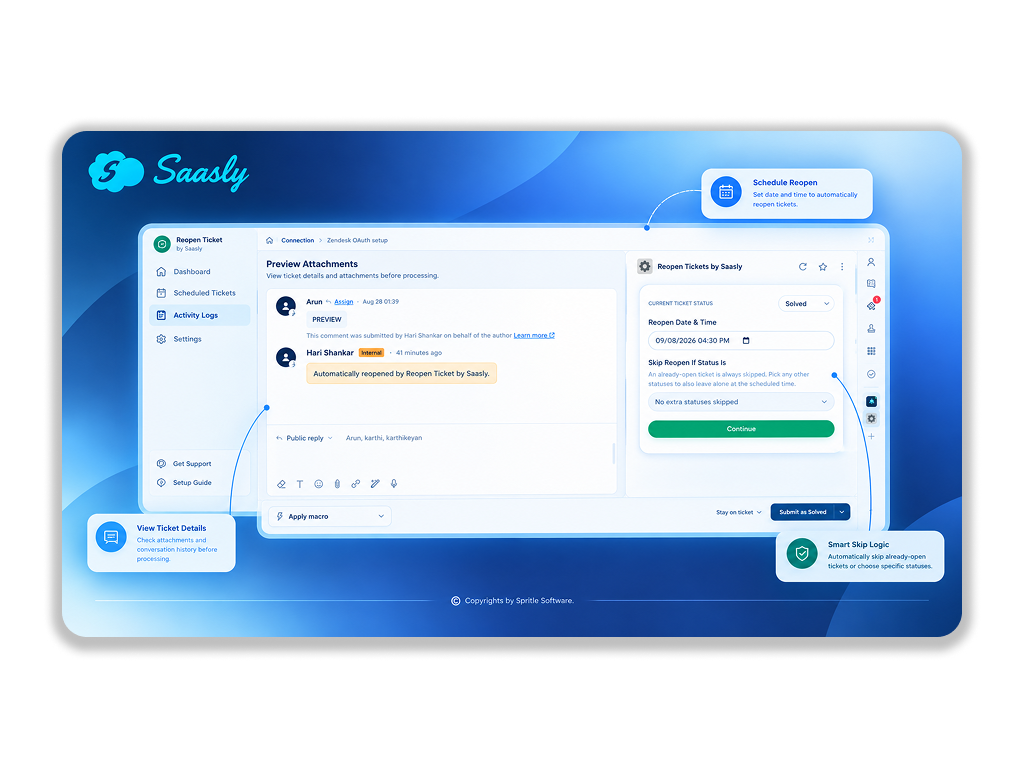
- Locate the Reopen Ticket app in the ticket sidebar.
- Select the desired date and time.
- (Optional) Choose any statuses that should skip the reopen if the ticket is already at one of them.
- Click Continue, then confirm.
The ticket is reopened automatically at the scheduled time, unless it's already Open or at a status you chose to skip. You can schedule any number of reopens over time for the same ticket, and edit or cancel any of them while still pending.
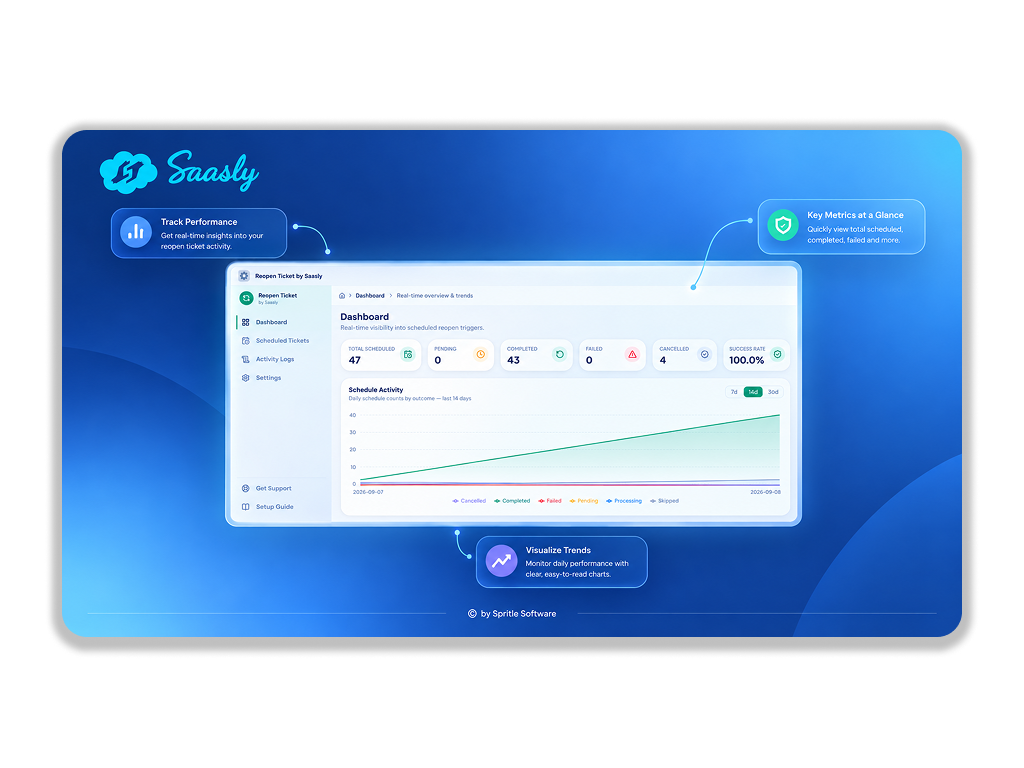
4. View the Dashboard
- Open the Reopen Ticket app from the Zendesk nav bar.
- View:
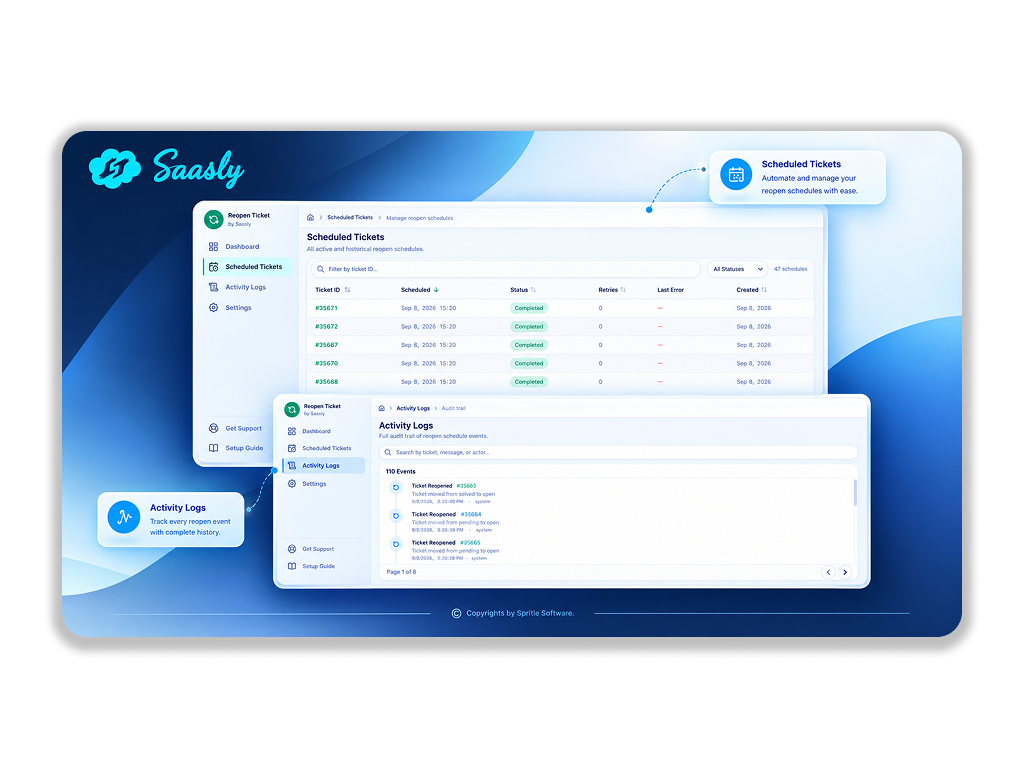
- Scheduled, completed, and skipped reopens
- Status breakdowns and trends
- Activity log of connection and scheduling events
App Screenshots:
Support
If you experience any issues during installation or configuration, please contact us at people@saasly.in.