

Back

Future Tickets for Zohodesk
Agents can schedule a limited number of follow-up tickets
PAID
Visit to InstallVerified App
🔧 Installation & Setup
- After purchasing, you’ll be redirected to the Configuration page.
- Under General Settings, fill in the required fields and click Install.
🔐 Zoho Authentication (Important)
- Look for Future Tickets – Zoho Authentication in the top bar.
- If not visible, click the ☰ hamburger menu to find it.
- Click to open the full-page setup.
- Click Authorize and grant the required permissions.
📅 Scheduling Future Tickets
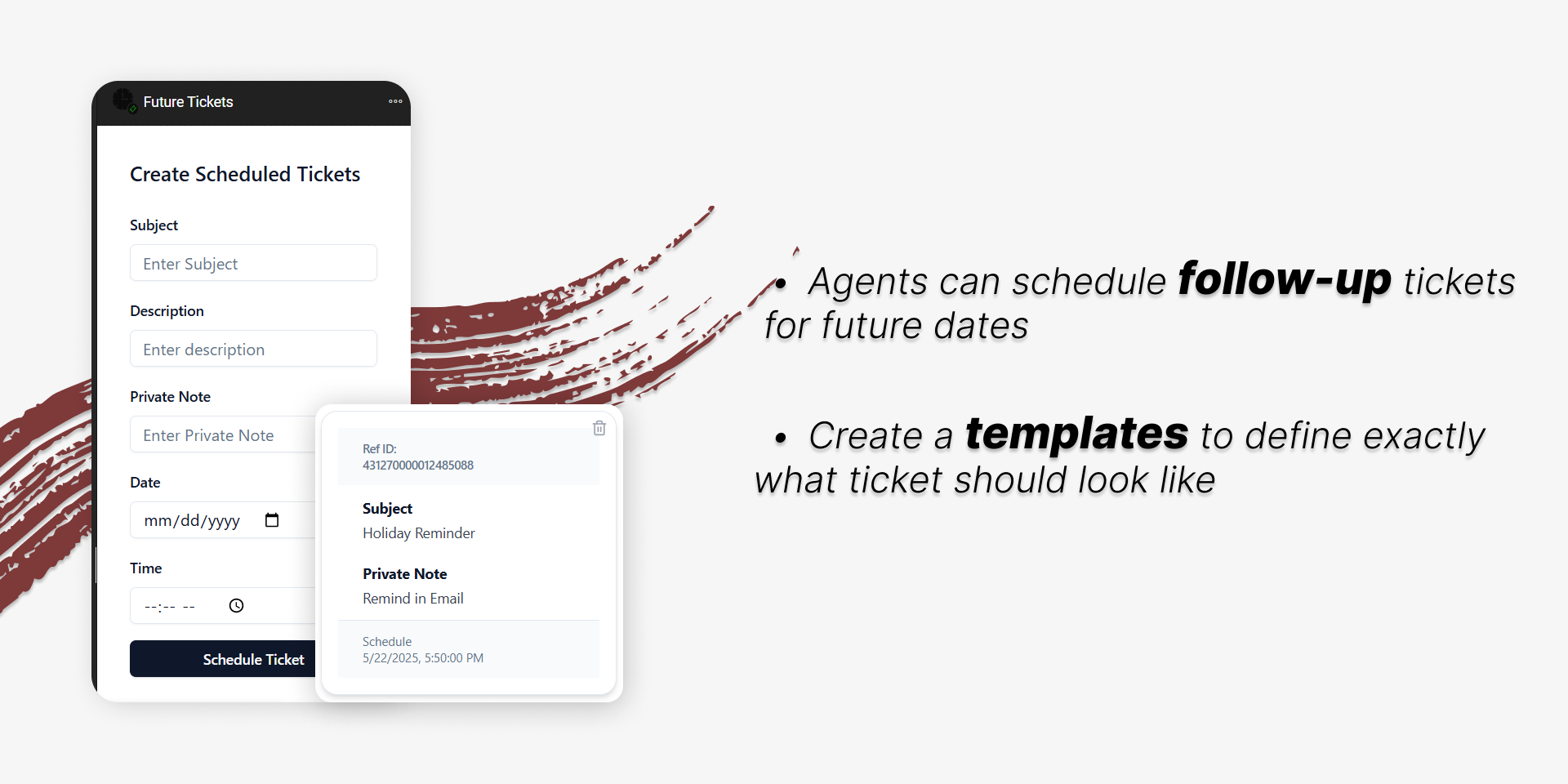
- Open a ticket and find Future Tickets in the left tab of the ticket detail view.
- Select a future date, add your note, and click Save.
- Once scheduled:
- A future ticket will be created automatically at the chosen time.
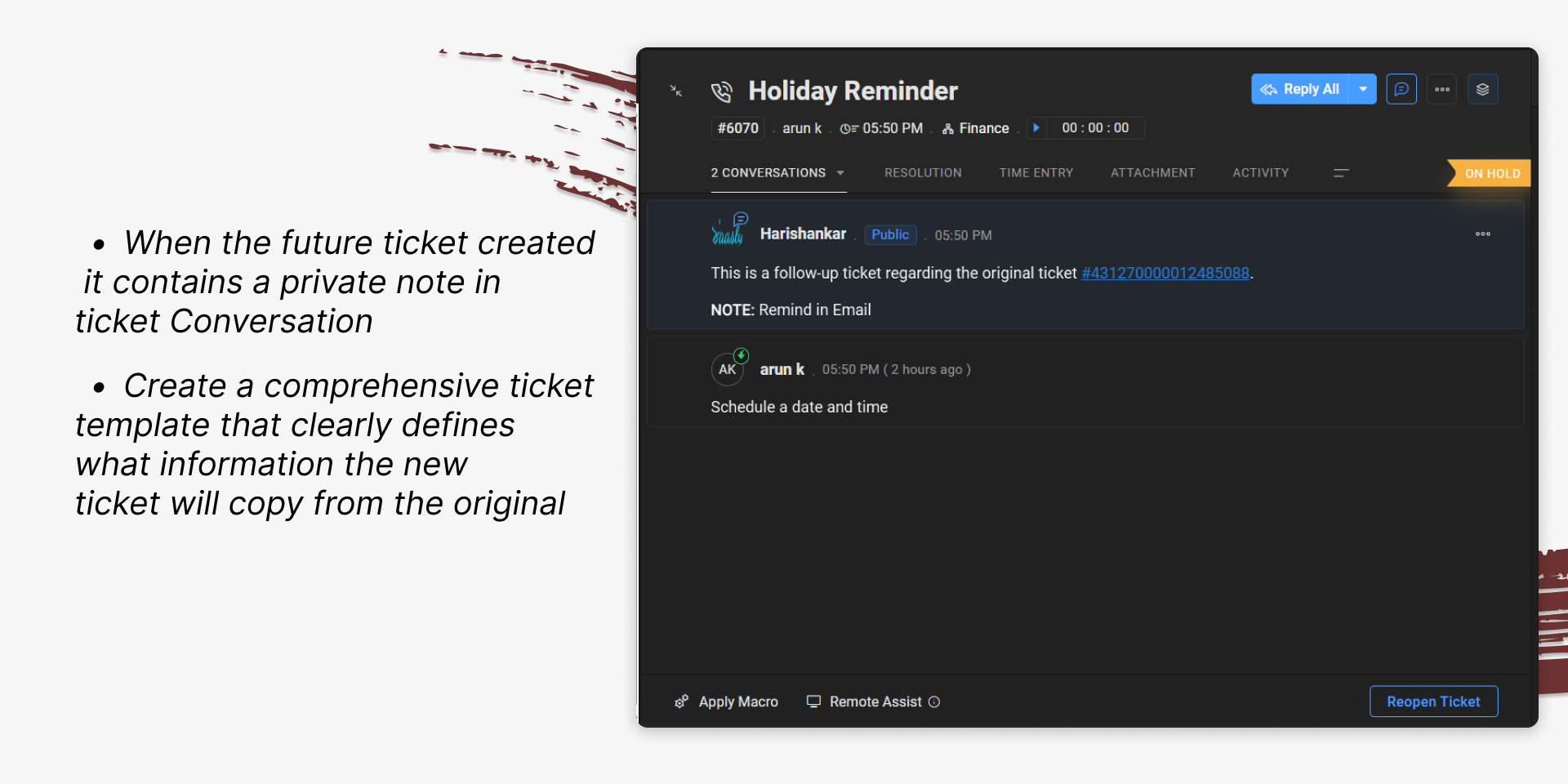
- A private note will be added to both the parent and child tickets.
- The child ticket will be tagged with the parent ticket reference ID.
Demo Video:
Screenshot 1:
Screenshot 2:
Contact us : For Demo and Support contact us Via Ticket link
About Us :
Saasly is an iPaaS company specializing in crafting plugin applications and integrations tailored to your business requirements. Be sure to visit our website for more information!